Appearance
Scan Status
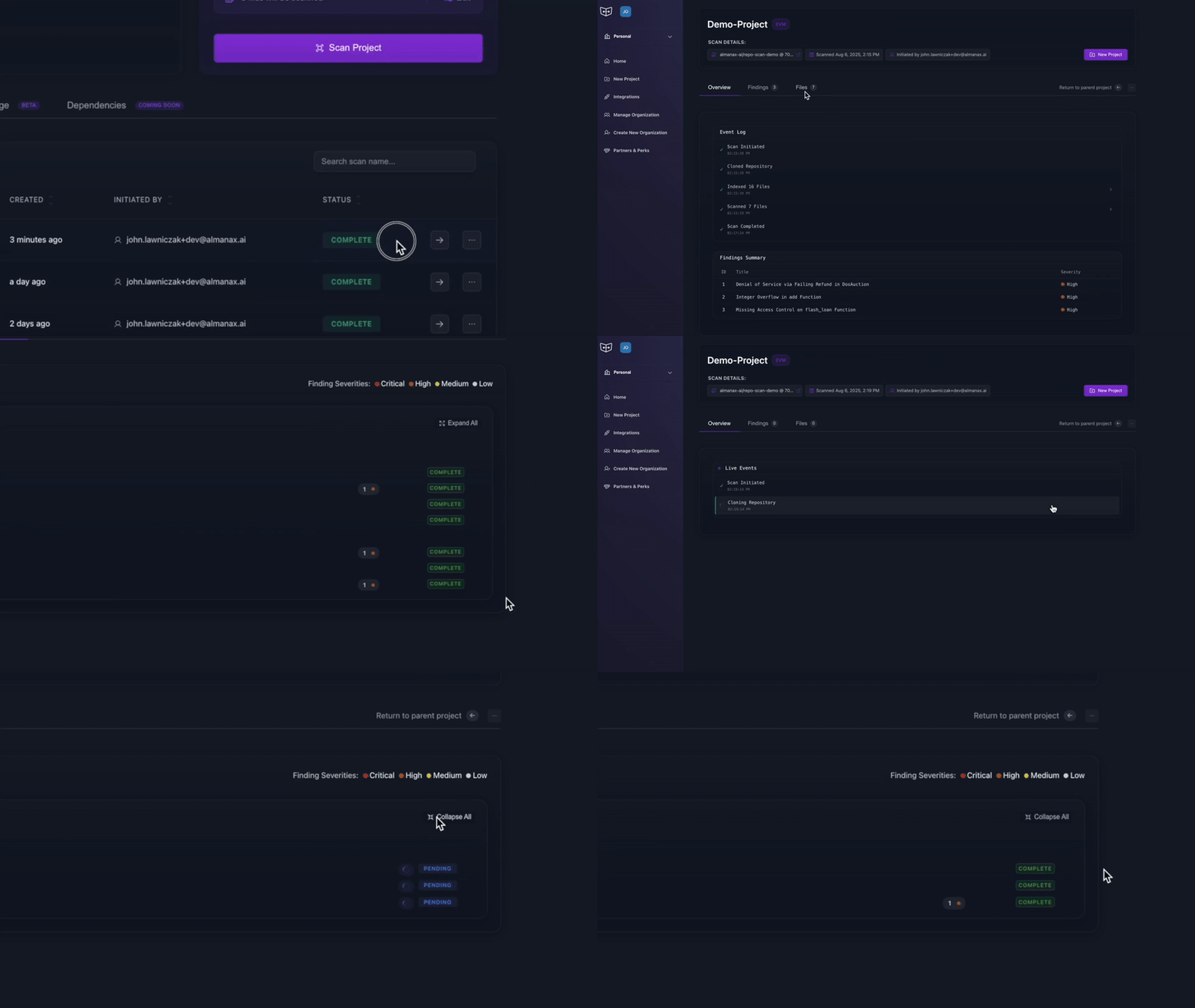
Scan statuses are located on the Project home page and under the Files tab. Each scan can be in one of the following states: Completed, Pending, Stuck, or Failed.
Expected Timeline
Depending on the size of the repository and the amount of files, scan times can vary. Typical scans usually only take 1-3 minutes, but larger repositories may take longer.
- Very large codebases: Consider using scan configuration to focus on specific directories.
Completed
- The scan has successfully finished processing all files
- You can now interact with findings, export a PDF, and generate a POC.

Pending
- The scan is in the queue waiting to be processed (normal for new scans)
- Wait for the scan to complete

Stuck
- A call to the LLM service has failed and remains in pending status
- Requires manual intervention
Failed
- The scan failed to complete and needs to be retried
- Check the error message for details

Retrying Failed Scans
If a scan fails to complete due to technical issues or timeouts, you can retry it:
- Navigate to the failed scan
- Click the "Retry" button that appears on failed scans
- The system will attempt to run the scan again with the same configuration

This retry functionality allows you to quickly attempt the scan again without having to reconfigure the scan parameters.
WARNING
If a scan encounters temporary issues, our mechanism will attempt to retry up to 3 times. After it will be marked as Failed.
Handling Issues
If a scan is Stuck or Failed:
- Check your internet connection
- Verify the repository is still accessible
- Try rescanning the project in the
Files tab
TIP
For more details on handling failed and pending scans, see Common Issues.