Appearance
Creating a Project
Creating a new project lets a user view all scans in that project, make changes, and rescan files in the repository.
Project Setup
1 — GitHub repo URL
- Required
- The URL can be either
PublicorPrivate - If you try to access a private repository without permissions, you'll see error messages:
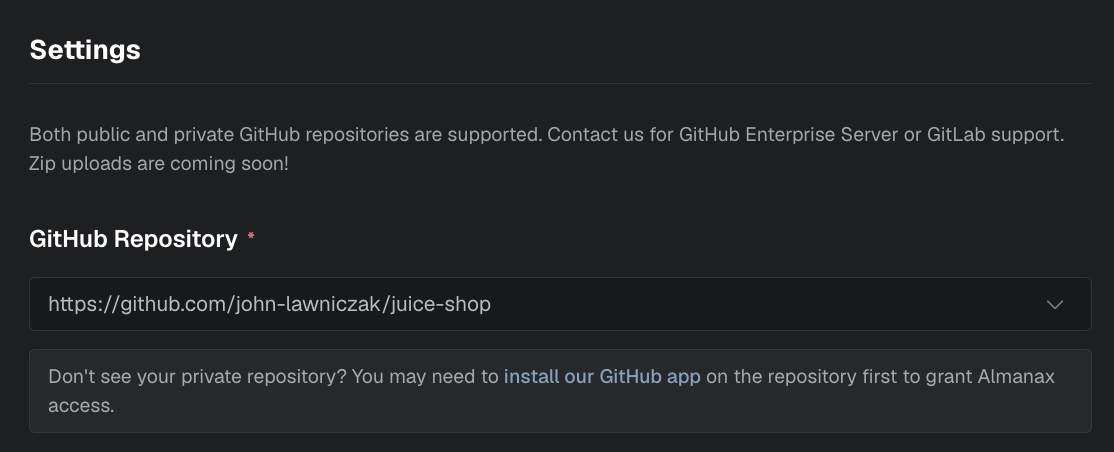
2 — Project name
- Required
- Create a project name (whatever the user wants); prefilled with the repo name.
3 — Specialized agent
- Required (Default is auto-selected)
- Specialized agents are trained on specific ecosystems to provide more accurate security analysis tailored to your project's technology stack.
- The Default selection is a catch-all for all languages.
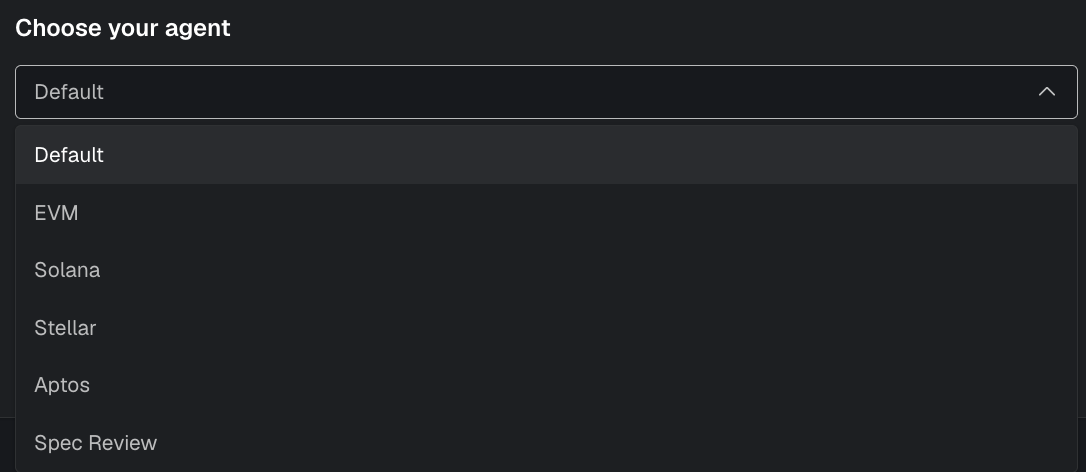
- Default: General scanning for mixed-language repositories
- EVM: Solidity/EVM smart contract focused scanning
- Solana: Rust Solana program focused scanning
- Stellar: Soroban smart contract focused scanning
- Aptos: Move (Aptos) smart contract scanning
- Spec Review: Compare spec/docs against implementation mismatches
Available options depend on your subscription (for example, Spec Review may only appear on eligible plans).
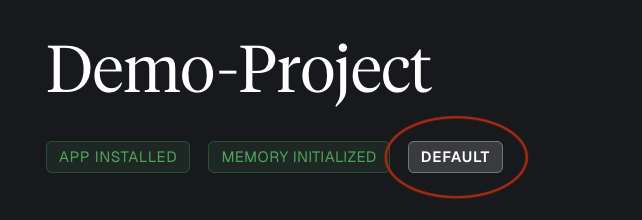
The specialized agent type is shown on the project page next to the project's title. Once a project is created, you can change it later in Project Settings.
- Example Demo Project with the Default agent.
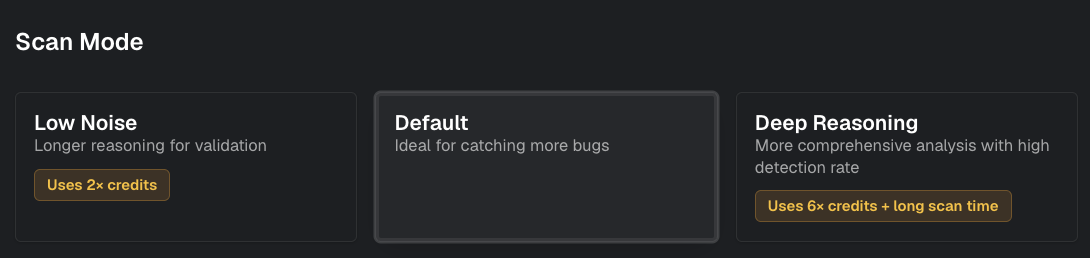
4 — Scan mode
- Optional
- Default: Standard scanning with the full rule-set and reasoning pipeline. (More findings)
- Low Noise: Adds an extended reasoning phase to reduce false positives – recommended if you prefer fewer, higher-confidence findings. (Less findings, higher accuracy)
- Deep Reasoning: This uses more comprehensive analysis and subagents with high detection rate
5 — Directory selection
- Required
- Select the directories to scan (they can be adjusted again before scanning).
- For more details about configuring scan targets, see Scan Configuration.
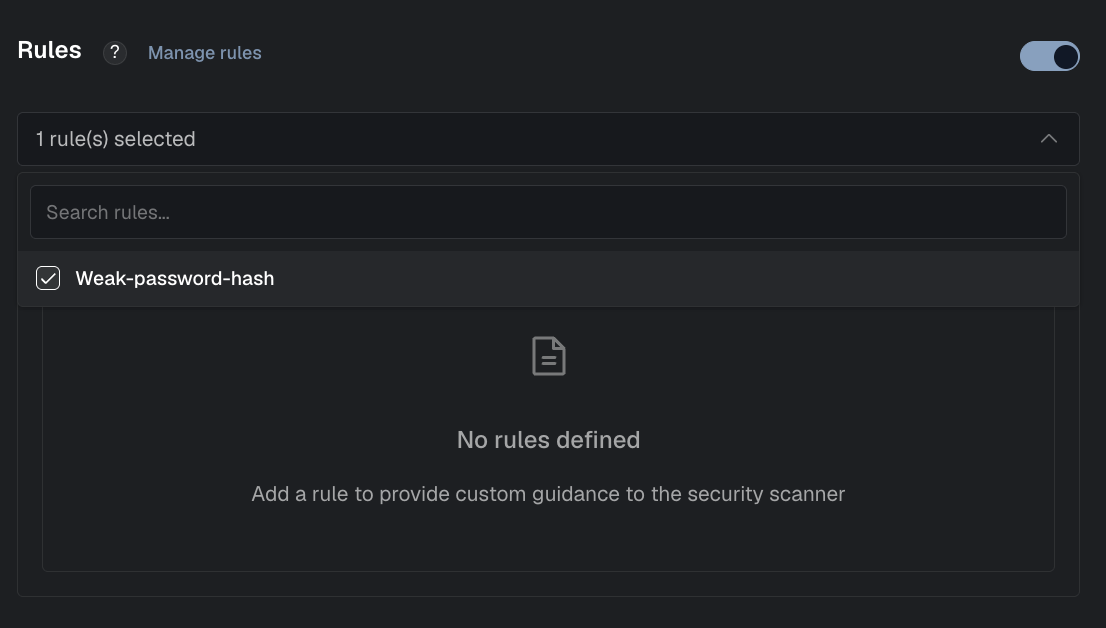
6 — Rules
- Optional
- Add Rules to tailor the scan to your internal security guidelines. You can add or edit rules later from the Project settings page.
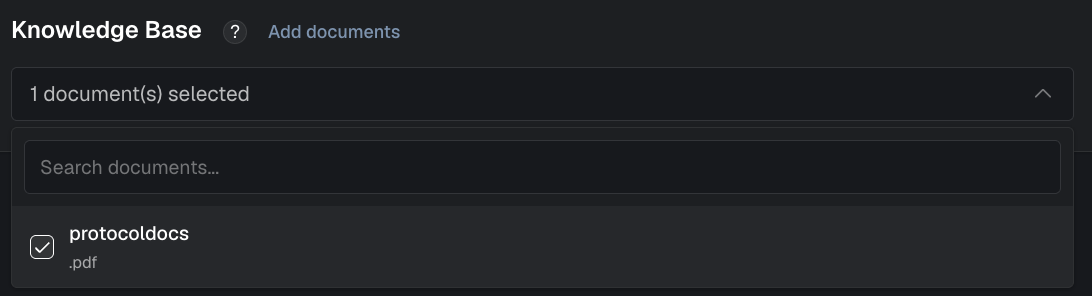
7 — Knowledge base
- Optional
- Add Project Documentation or context (e.g., protocol specifications, invariants) that the reasoning engine can reference during scanning.
After creating your project, you'll be taken to the Project Page where you can start configuring and running scans.