Appearance
Knowledge Base (Project Documentation)
Security scans are more accurate when the AI understands your architecture and project-specific invariants — facts that must always stay true (e.g. “a logged-in user can access only their own data”).
How it works:
- Ingestion: when you upload a doc (PDF/MD/TXT), Almanax extracts readable text, and stores the extracted text in encrypted blob storage.
- At scan time: the scanner provides the LLM with the list of attached docs which helps the model decide which documents are relevant.
- On-demand querying: if the model needs specifics, it can call a docs-search tool to open a selected document and ask a targeted question.
By uploading relevant documentation you give the LLM extra context so it can:
- Confirm an apparent bug is intended behaviour (design intent).
- Reduce false-positives for known patterns (e.g. admin roles, upgrade proxies).
- Provide richer remediation advice that references your own modules and glossary.
Uploading documentation
Go to Knowledge Base.
Click Upload Document and select your file (PDF / MD / TXT, ≤ 5 MB).
Add a Name so teammates can recognize it later.
Click Save. The doc is stored in the encrypted blobstore and linked to the project.
Apply docs to a project scan
Docs are stored at the organization level. A scan will only use the docs that are selected in the project’s scan config.
To include docs in scans:
- Open a project.
- Go to Config.
- Open the Knowledge Base section.
- Select one or more documents from your organization and click Save Changes.
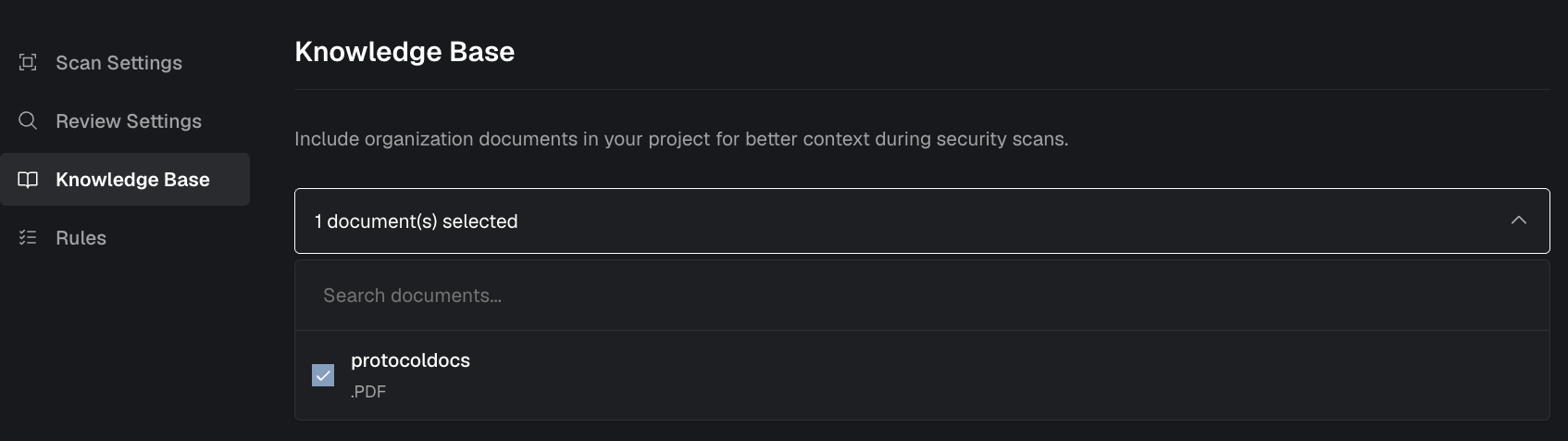
This writes the selected document slugs into your project configuration under documents:. During scans, Almanax passes the selected docs (and their summaries) to the LLM, and the model can query them on-demand when needed.
Once selected, you'll see the document names on the Project page and in Scan Configuration in the project settings.
You can upload multiple files; they’ll all be referenced during the next scan. In findings you may see references: “According to Design Overview v3, this function should...”
What kind of docs should I upload?
| Type | Examples |
|---|---|
| PDF, MD, TXT | Technical specs, threat models, run-books |
| Architecture diagrams | Export diagram notes as PDF or markdown first |
| Audit reports | Previous audits help the LLM avoid duplicate findings |
Limits & plan
- File size ≤ 5 MB each; up to 20 docs per project.
- Feature available on Premium and Enterprise plans.
FAQ
| Question | Answer |
|---|---|
| Are docs shared across projects? | Yes. Docs are stored at the organization level, and each project can select which org docs to include during scans. |
| How secure are the docs? | Stored in AES-256 encrypted S3; only your org can access them. |
| Will they appear in findings? | In findings you may see inline references: “According to Design Overview v3, this function should…” |