Appearance
Rules
Rules let you tailor Almanax to look for specific patterns in your codebase. Create rules via the sidebar or under the Config section of a project. Want to experiment safely? Test rules in the Rules Playground.
- Rules are global to your organization. Create them once and apply them to one or more projects.
Why use rules?
- Capture and enforce critical codebase invariants.
- Silence noisy findings you've already triaged (suppression rules).
- Enforce your secure-coding guidelines.
For example, if your team has a policy that all API endpoints must validate authentication tokens before processing requests, you can create a rule like:
slug:
missing-auth-check
prompt: Flag any API endpoint handler that processes user input without first validating the authentication token or session.
When Almanax scans your code, it will specifically look for this pattern and report violations.
How it works
Rules have two task types that control where they run:
- Scan rules (
SCAN): run during full project scans (manual scans and CI/CD scans when scanning whole files). - Review rules (
REVIEW): run during pull request / diff scans (reviewing only the changed code).
You can select Scan, Review, or both for a rule. If a rule has no task type selected, it may be treated as applicable to both scan and review workflows.
Scan vs Review rules
| Dimension | Scan rules (SCAN) | Review rules (REVIEW) |
|---|---|---|
| Where they run | Full scans (manual scans and CI/CD scans that analyze whole files) | Pull request / diff review scans |
| What the model sees | Full file content (plus repo context via tools) | The PR diff (focused on the RIGHT side of changes, plus repo context via tools) |
| Best for | “This is always unsafe in our codebase” invariants (e.g., missing auth checks, risky patterns across the repo) | “Don’t let this kind of change land” checks (e.g., auth bypasses introduced in PRs) |
| How rules are applied | For enabled rules, Almanax runs an additional rule-focused pass and sends the rule to the LLM as a structured rule object (slug + prompt + optional severity). | Almanax runs additional rule-focused diff passes and sends the rule to the LLM as a structured rule object (slug + prompt + optional severity). |
| Attribution | Rule-triggered findings are tagged with the rule slug | Rule-triggered findings are tagged with the rule slug |
| Severity override | If the rule sets a severity, it overrides the model’s default severity for those findings | If the rule sets a severity, it overrides the model’s default severity for those findings |
exts filtering | Enforced (rule runs only on matching file extensions if set) | Not guaranteed (Review rules run over PR diffs and may not be restricted by exts) |
| Requirements | Enable the rule on the project | Enable CI/CD review scanning for the repo + enable the rule on the project (see CI/CD Integration) |
Creating a rule
- In the sidebar, click Rules → + New Rule
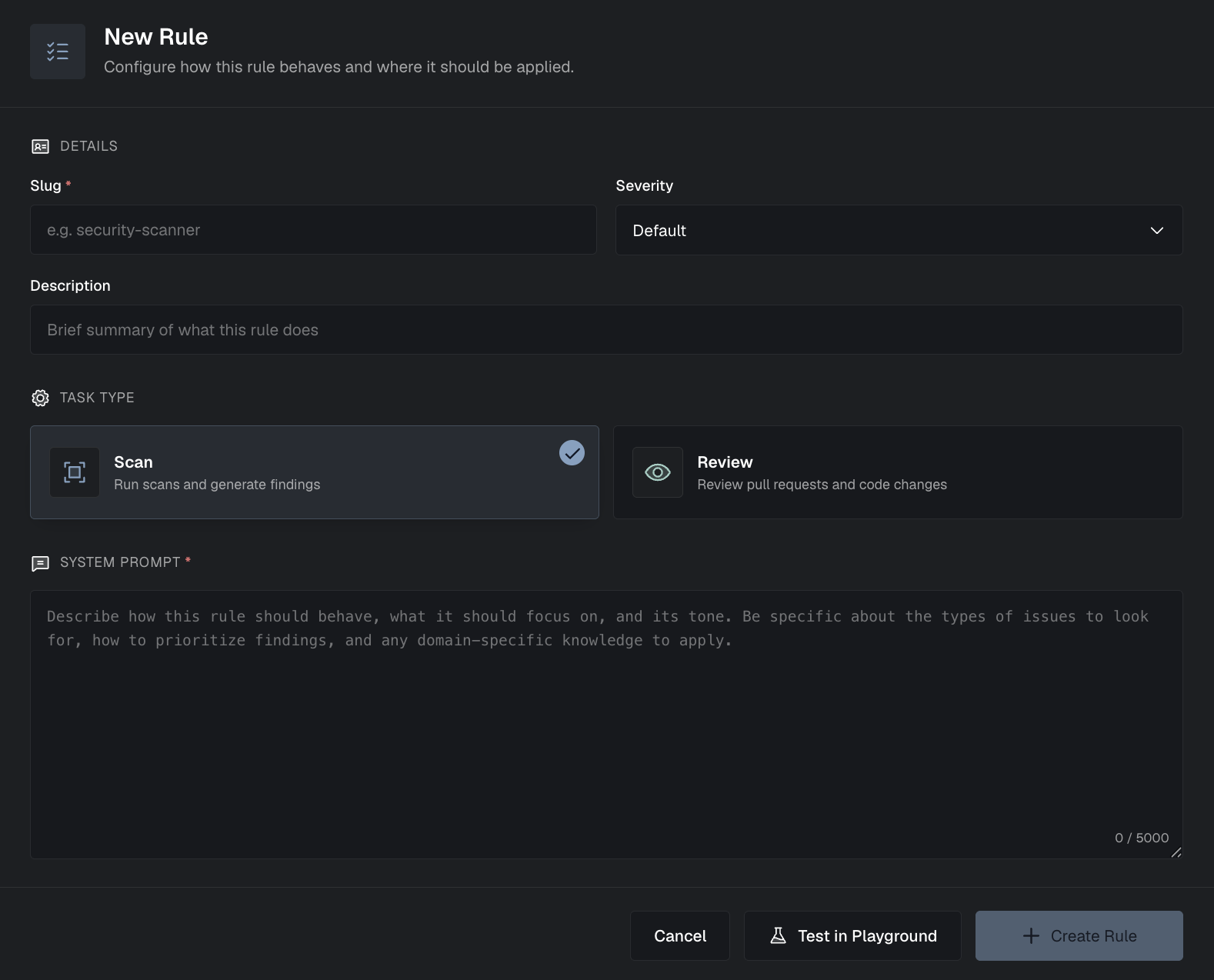
Fill in the form:
Field Required Description slug ✓ Unique identifier in kebab-case. Letters, numbers, -and_only (e.g.,authz-permission-sync).prompt ✓ Human-readable rule text describing what to look for (≤ 5000 chars). description Optional short description of the rule's purpose. exts Optional file extensions (e.g., .sol,.cpp,.ts). Leave blank to apply to all file types.severity One of: LOW, MEDIUM, HIGH, CRITICAL. tasks Where the rule runs: SCAN,REVIEW, or both.Click Save Rule. Rules are global to your org; to use them, enable the rule on each project (Project › Config › Rules).
Example Rules
yaml
rules:
  - slug: logging-secrets
    prompt: Flag logging statements that include hard-coded secrets or environment variables (e.g., AWS_SECRET, API_KEY, process.env.*) being written to console or logs.
    exts:
      - .ts
      - .js
    severity: HIGH

  - slug: authz-permission-sync
    prompt: Flag authorization checks that use string literals not defined in the centralized permission constants; frontend and backend permission sets must stay in sync.
    severity: CRITICAL
Example suppression rules
Suppression rules instruct the scanner to avoid reporting certain classes of matches. Keep them specific and scoped to known-safe patterns.
yaml
rules:
  - slug: suppress-generated-files
    prompt: Do not report issues in auto-generated files that contain a header comment like "This file is generated" or "@generated"; treat these files as read-only build artifacts.
    severity: LOW

  - slug: suppress-test-only-insecure-usage
    prompt: Do not report usage of insecure primitives when they appear inside unit tests or test helpers (e.g., files named *.test.ts, *.spec.ts, or directories named __tests__). Tests may include intentionally insecure examples.
    exts:
      - .ts
      - .js
    severity: LOW

  - slug: suppress-local-dev-secrets
    prompt: Do not report secrets found in clearly non-production development configs (e.g., .env.development, .env.local) unless the value resembles a real cloud credential; focus on production configs.
    severity: LOW
Enabling rules on a project
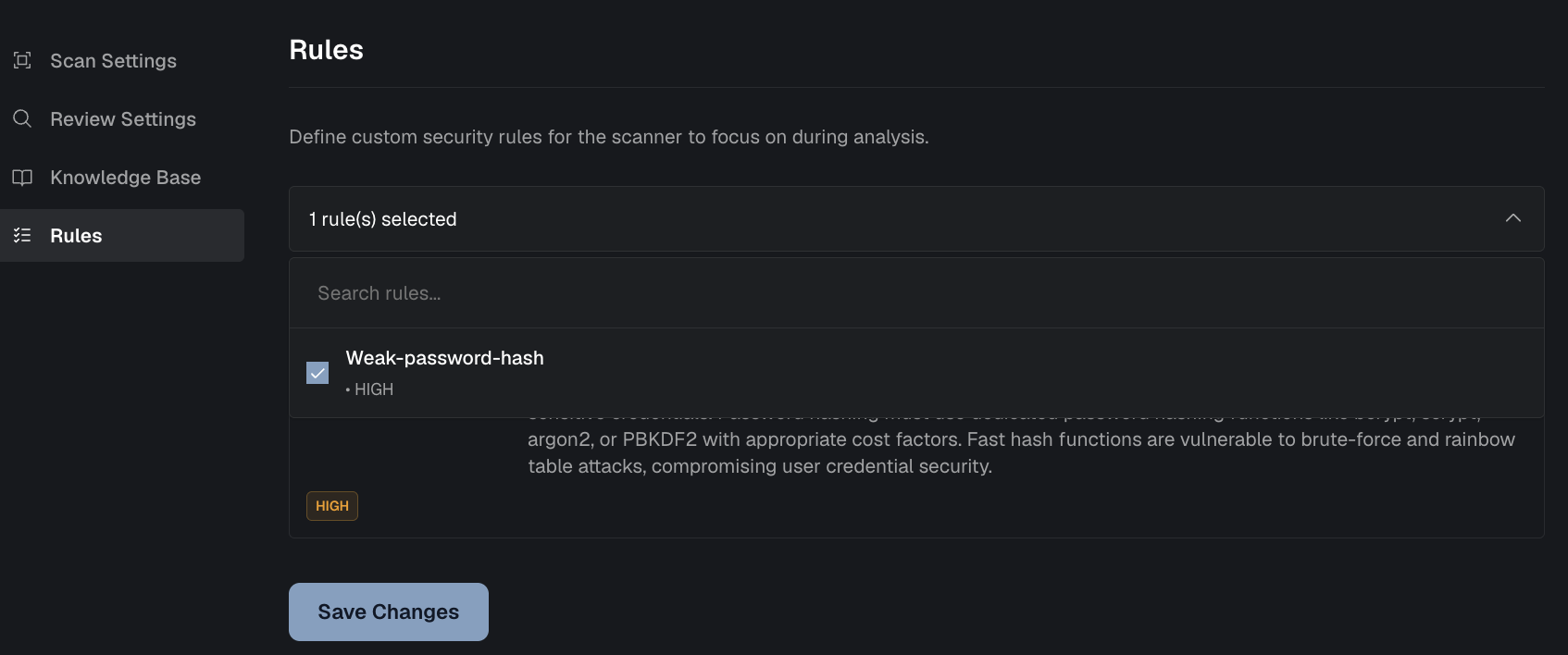
After creating org-level rules, enable them per project:
- Open the target project
- Go to Project › Config › Rules
- Enable the rules you want active for that project
Once enabled:
- Rules with task Scan run during full scans.
- Rules with task Review run during PR/diff review scans (CI/CD).
YAML Structure Requirements
- Use
slugfor the rule identifier - Use
promptfor the rule text (what to look for) - Use
tasksto choose where the rule runs (SCAN,REVIEW) - Slug must be kebab-case and only contain letters, numbers,
-or_ - Severity must be one of: LOW, MEDIUM, HIGH, CRITICAL
extsis an array of extensions (e.g.,[".sol", ".cpp", ".js"]) — leave empty to apply to all file types
Notes:
extsfiltering is enforced for Scan rules. Review rules run over PR diffs and may not be restricted byexts.
Full project config YAML example
This is a simple example of a project’s scan configuration (the YAML that Almanax uses for scans and CI/CD review settings):
yaml
include: # globs to scan (repo root)
  - src/** # app source
  - contracts/**/*.sol # solidity contracts
  - cmd/api/main.go # single file example
  - packages/web/src/** # monorepo package

exclude: # skip even if included
  - '**/node_modules/**' # deps
  - '**/dist/**' # build output
  - '**/target/**' # rust build output
  - '**/*.min.js' # minified
  - '**/*.gen.*' # generated

scan_mode: DEFAULT # DEFAULT | LOW_NOISE | DEEP_REASONING

project_type: OTHER # OTHER | SOLIDITY | RUST_SOLANA | RUST_SOROBAN | MOVE_APTOS | SPEC_REVIEW

documents: # Knowledge Base doc slugs to include
  - protocol-docs # slug of an uploaded doc

rules: # enabled org rule slugs for this project
  - weak-password-hash # example rule slug

github: # CI/CD (PR review scan) settings
  use_scan_config: true # apply include/exclude to PR diffs
Tip: In YAML, [] means an empty list (no entries). Common examples:
exclude: []— don’t exclude anything (scan everything matched byinclude)documents: []— don’t include any Knowledge Base docs in scansrules: []— don’t enable any org rules for this projectgithub: {}— no CI/CD review settings configured
Reference
Constraints
- Slug: max 128 characters; allowed:
A–Z,a–z,0–9,_,- - Prompt: max 5000 characters
- Uniqueness: slugs are unique per organization (case-insensitive)
- Exts: if provided, extensions are normalized to start with a leading dot (e.g.,
sol→.sol) - Project config: projects can only enable rules that exist in the organization; duplicates or unknown slugs cause validation errors
Managing rules
- Toggle – use the toggle box to switch off the rule without removing it.
- Edit – click
Edit Rulenext to a rule to change its fields. - Delete – click
Delete Ruleto remove a rule completely.
How matches appear in the UI
When a finding is triggered by a rule, the finding details show a "Rule Matched" indicator, so you can quickly see which rule detected it.

You can find which rule slug was triggered in two places:
- The
Copy for LLM sectionin the top right of theDescription - The bottom of the finding details under
RULES USED

Quotas & limits
- Feature available on Premium and Enterprise plans.
Troubleshooting
| Error | Cause & Fix |
|---|---|
| Request failed with 404 | Rule slug must be unique; rename it. |
| Configuration did not match any files | Your include/exclude patterns filter out every file— adjust or add a small test file. |
Helpful LLM Prompt
Use this prompt to quickly draft high‑signal rules:
markdown
You are a security engineer preparing to scan a codebase.

Task:

- Read the repository profile (README, top-level docs) and infer critical invariants.
- Propose 5 concise rules that would surface likely vulnerabilities in this repo.
- Output only a valid YAML document named Rules.yaml using this schema:

rules:

- slug: <kebab-case-identifier>
  prompt: <≤200 chars of clear guidance>
  exts: <optional array of extensions like [".ts", ".sol"]>
  severity: <LOW|MEDIUM|HIGH|CRITICAL>

Constraints:

- Use kebab-case for slug; letters, numbers, '-' or '\_' only.
- Prefer generic, stack-aware rules (no paths). Set exts only when language-specific.
- Keep each rule actionable and non-duplicative.
Quick start: Try in Playground
Once you've created rules you can test them safely with the Rules Playground:
- Select a project
- Pick a few representative files
- Describe your rule in plain English
- Run the test and iterate
Nothing is saved to your org until you choose "Add to Org Rules".