Appearance
MCP Server Integration
The Almanax MCP Server brings security findings directly into AI IDEs like Cursor, Claude Code, and more, so security and engineering teams can review, understand, and fix issues without ever leaving their workflow.
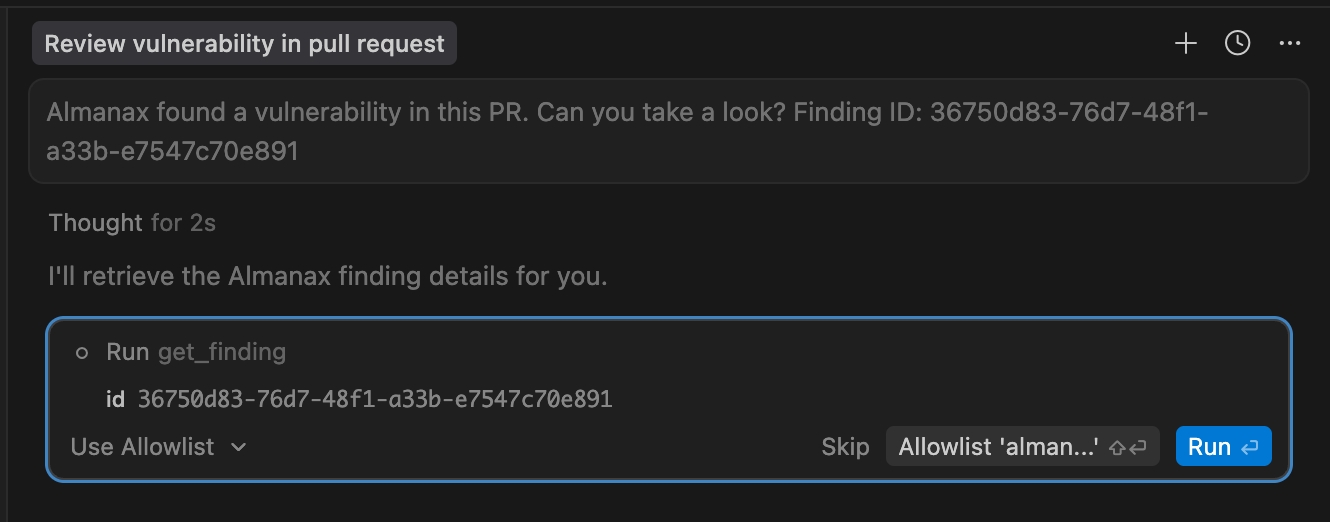
What is MCP?
The Model Context Protocol (MCP) allows AI-powered IDEs and coding assistants to communicate with external services like Almanax. Once configured, you can:
- Query security findings from your Almanax scans
- Get AI-powered analysis and remediation suggestions
- Fix vulnerabilities directly in your editor with AI assistance
- Review findings from pull requests and commits
- Update, resolve, or dismiss findings as part of your workflow
- Create Almanax Rules tailored to your codebase
Prerequisites
Before setting up MCP, you'll need:
- An Almanax account with API access enabled
- Your Almanax API key (see Account Settings → API keys)
Create an Almanax API key
- Open Account Settings.
- Go to API keys.
- Click Create API key.
- Copy the key and store it somewhere safe (treat it like a password).
IDE Setup
Cursor
Cursor supports automatic MCP configuration via install links.
- Copy your API key from your Almanax account settings
- Click the install button below or use the manual configuration
Manual setup:
Add the following to your Cursor MCP settings:
json
{
  "almanax": {
    "url": "https://mcp.almanax.ai",
    "headers": {
      "Authorization": "Bearer YOUR_API_KEY_HERE"
    }
  }
}
Codex (OpenAI)
Codex has a built-in command for adding MCP servers:
bash
# Set your API key as an environment variable
export ALMANAX_API_KEY="your_api_key_here"

# Add the Almanax MCP server
codex mcp add --url https://mcp.almanax.ai --bearer-token-env-var ALMANAX_API_KEY almanax

# Verify installation
codex mcp list

# To remove later
codex mcp remove almanax
Claude Code (Anthropic)
Claude Code supports MCP configuration via command line:
bash
# Set your API key as an environment variable
export ALMANAX_API_KEY="your_api_key_here"

# Add the Almanax MCP server globally
claude mcp add --transport http almanax https://mcp.almanax.ai --header "Authorization: Bearer $ALMANAX_API_KEY" --scope user

# Verify installation
claude mcp list

# To remove later
claude mcp remove almanax
Manual Configuration
Most MCP-compatible tools support a configuration file in your home directory called .mcp.json:
json
{
  "mcpServers": {
    "almanax": {
      "url": "https://mcp.almanax.ai",
      "headers": {
        "Authorization": "Bearer YOUR_API_KEY_HERE"
      }
    }
  }
}
Replace YOUR_API_KEY_HERE with your actual API key.
Available Tools
Once connected, the following tools are available:
| Tool | Description |
|---|---|
almanax_get_finding | Retrieve details about a specific security finding |
almanax_get_findings_for_scan | List all findings from a scan |
almanax_get_findings_for_pr | Get findings for a specific pull request |
almanax_get_findings_for_commit | Get findings for a specific commit |
almanax_scan_commit | Scan a specific commit diff and return findings |
almanax_update_finding | Update a finding's severity |
almanax_resolve_finding | Resolve or reopen a finding |
almanax_dismiss_finding | Dismiss or restore a finding |
almanax_create_rule | Create a custom Rule for an organization |
Workflow actions require an API key with the appropriate write scope:
scan:writefor starting commit scansfinding:writefor finding updates, resolution, and dismissalrule:writefor custom Rule creation
If your API key user belongs to multiple organizations, include the target org_id when creating a Rule.
Scanning a Commit
The almanax_scan_commit tool lets your coding agent kick off a fresh Almanax diff scan for a specific repository commit, wait for it to finish, and immediately work from the returned findings.
Use it when you want to ask your IDE assistant things like:
- "Run Almanax on commit
abc1234inowner/repoand summarize the findings." - "Scan the diff from
base_shatocommit_shaand fix any High severity issues." - "Use Almanax to review the current commit before I open a PR."
Tool Inputs
almanax_scan_commit accepts:
repo_owner: GitHub repository ownerrepo_name: GitHub repository namecommit_sha: head commit SHA to scanbase_shaoptional: base commit SHA for the diff. If omitted, Almanax uses the single parent ofcommit_shaorg_idoptional: choose the organization when the same repository exists in multiple orgs you can accessproject_idoptional: choose the exact project when the repository exists in multiple Almanax projects
What It Returns
On success, the tool returns the completed scan metadata and findings, including:
scan_id,project_id,project_name, and repository details- final
status - file progress counts such as
files_total,files_completed, andfiles_failed countplus a severitysummary- the full list of active findings for that scan
If the repository matches more than one accessible Almanax project, the tool does not start scanning immediately. Instead, it returns:
selection_required: true- a
selection_prompt project_optionscontaining the candidateorg_idandproject_idvalues to retry with
This is especially useful if you mirror the same repository across a personal org and one or more shared orgs.
Packaged Prompts
The Almanax MCP also includes two packaged prompts that reflect best practices for triaging and remediating findings:
| Prompt | Description |
|---|---|
almanax/analyze | Analyze a finding—use as a starting point for triage/discussion |
almanax/fix | Apply best practices and recommendations for fixing a finding |
In Cursor, press / in the chat, select almanax/fix or almanax/analyze, and let the AI coding agent take it from there.
Example Questions
Here are some questions you can ask your coding agent once connected:
- "Can you fix all alerts from Almanax in PR #1340?"
- "Please fix finding
<FINDING_ID>" - "Is there any security flaw in the current commit?"
- "Run
almanax_scan_commitforowner/repoat<COMMIT_SHA>and fix all High severity findings." - "Scan commit
<COMMIT_SHA>inowner/repo; if Almanax asks me to choose a project, use the shared org project." - "Let's review all findings that Almanax generated in
<SCAN_ID>, one at a time. Fix all High severity." - "Set finding
<FINDING_ID>toMEDIUMseverity and add a note explaining why." - "Create an Almanax Rule in org
<ORG_ID>that flags use ofcrypto/md5in Go files."
GitHub Integration
Findings posted on a GitHub Pull Request include a practical snippet to copy and paste into your IDE, making it easy for the coding agent to start fixing immediately.
Verifying Your Connection
After setup, you can verify the connection is working by asking your AI assistant:
"Use Almanax to get my recent security findings"
If configured correctly, the assistant will be able to query your Almanax account and return relevant security information.
TIP
MCP integration is a premium feature. Ensure your organization has API access enabled in your subscription settings.
Troubleshooting
Connection refused or timeout:
- Verify your API key is correct and has not expired
- Check that your organization has API access enabled
- Ensure you're using
https://mcp.almanax.aias the URL
Authentication errors:
- Double-check the
Authorizationheader format:Bearer YOUR_API_KEY - Regenerate your API key if issues persist
Tools not appearing:
- Restart your IDE after adding the MCP configuration
- Check the MCP server logs in your IDE's developer tools