Appearance
Organization Roles
This guide provides in-depth information about the different roles available in Almanax organizations, their permissions, and how to manage them effectively.
What Are Roles?
Roles define what actions a user can perform within your organization. Each team member is assigned a specific role that determines their access level and capabilities within the Almanax platform.
Role-Based Access Control
Almanax uses role-based access control (RBAC) to determine what actions users can perform within an organization. This ensures that team members have appropriate access based on their responsibilities.
Available Roles
Admin
Admins have full control over the organization:
Permissions
- Organization Management: Can modify organization details, billing, and subscription
- User Management: Can add, remove, and change roles of other members
- Project Management: Can create, configure, and delete projects
- Scan Operations: Can run scans and view all findings
- Access Control: Can manage permissions for all resources
- Billing: Can view and modify billing information
Best Practices
- Limit the number of admins to maintain security
- Reserve for team leads and security officers
- Regularly audit admin accounts
Member
Members are regular users who can actively contribute but have limited administrative capabilities:
Permissions
- Project Access: Can view and contribute to projects
- Scan Execution: Can run scans on authorized repositories
- Finding Interaction: Can view, comment on, and dismiss findings
- Limited Settings: Can modify some project settings
- No Billing Access: Cannot view or modify billing information
Best Practices
- Default role for most team members
- Appropriate for developers and security engineers
- Can create and manage their own projects
Viewer
Viewers have read-only access to organization resources:
Permissions
- View Only: Can see projects, scans, and findings
- No Creation: Cannot create projects or run scans
- No Changes: Cannot modify settings or configurations
- Reports Access: Can access reports and scan results
Best Practices
- Use for stakeholders who need visibility
- Appropriate for managers and executives
- Useful for external auditors
Managing Team Members
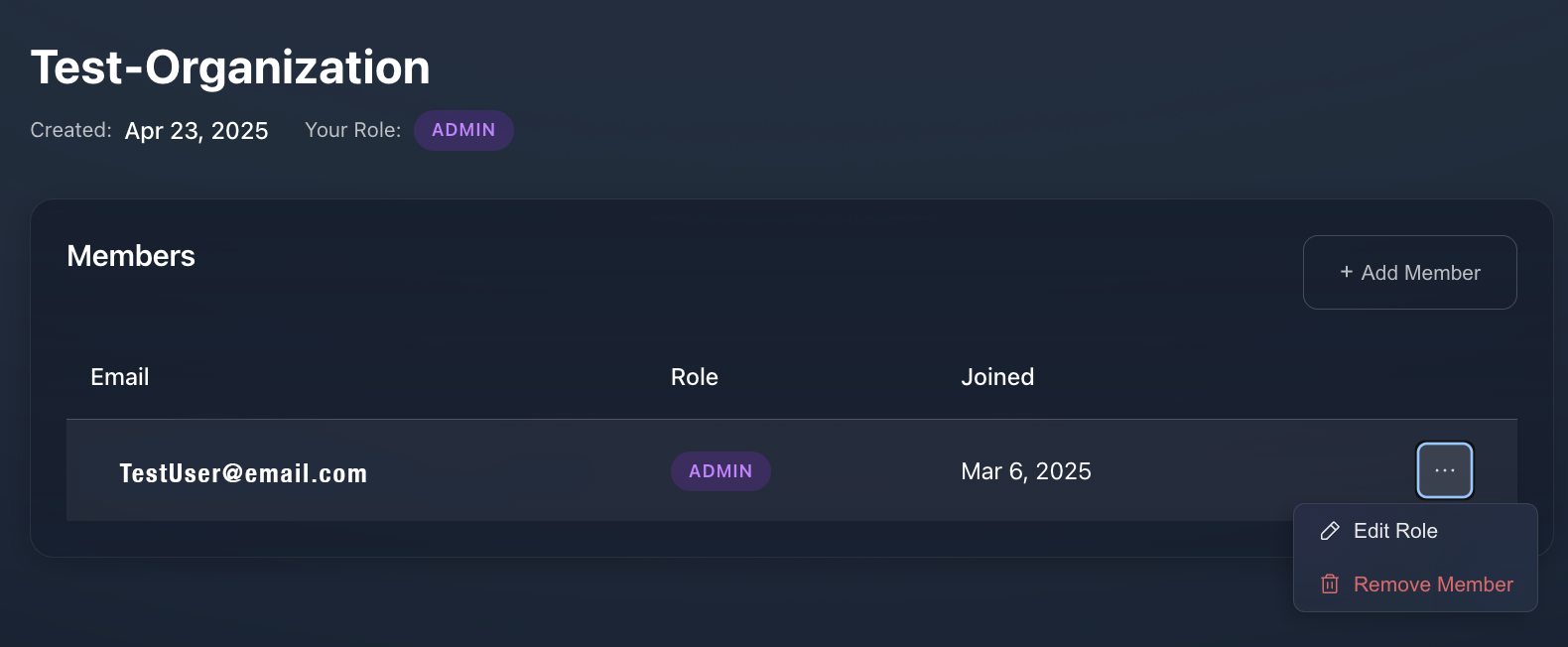
Viewing Team Members
The Members tab allows you to see all users in your organization and their current roles.
Assigning Roles
When adding new members or modifying existing ones, you can select their role from the dropdown menu:
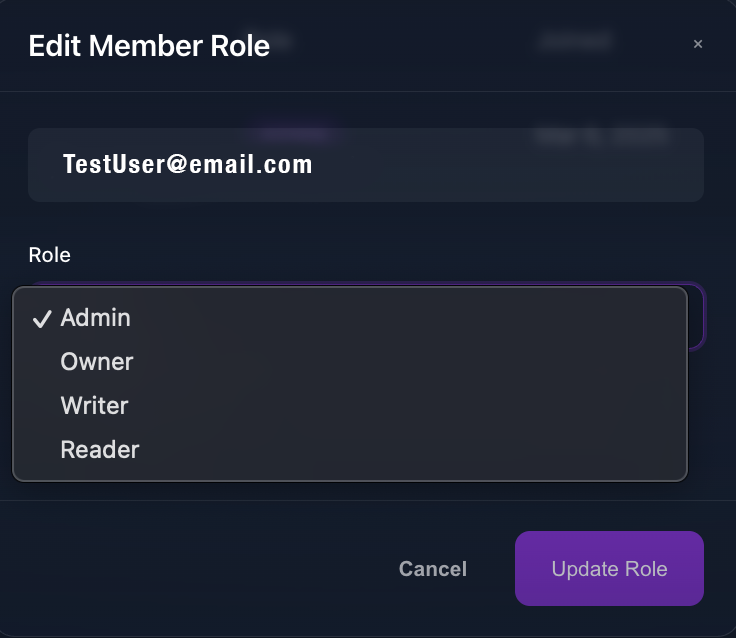
Select the appropriate role based on the user's responsibilities and required access level within your organization.
Role Assignment Strategy
Small Teams (2-5 Members)
- 1-2 Admins
- Remaining members as Members
- Reserve Viewer for external stakeholders
Medium Teams (6-15 Members)
- 2-3 Admins
- Security engineers as Members
- Project managers and stakeholders as Viewers
Large Teams (15+ Members)
- Limited number of Admins (3-5)
- Team leads as Members
- Developers and other stakeholders as Viewers
Permission Comparison
| Action | Admin | Member | Viewer |
|---|---|---|---|
| View projects | ✅ | ✅ | ✅ |
| Create projects | ✅ | ✅ | ❌ |
| Delete projects | ✅ | Owner only | ❌ |
| Run scans | ✅ | ✅ | ❌ |
| View findings | ✅ | ✅ | ✅ |
| Modify findings | ✅ | ✅ | ❌ |
| Add members | ✅ | ❌ | ❌ |
| Change roles | ✅ | ❌ | ❌ |
| Access billing | ✅ | ❌ | ❌ |
Best Practices for Role Management
- Principle of Least Privilege: Assign the minimum level of access necessary
- Regular Audits: Review roles quarterly to ensure proper access
- Role Rotation: Consider rotating admin responsibilities
- Documentation: Maintain documentation of who has what roles and why
- Offboarding Process: Have a clear process for removing members when they leave