Appearance
Managing Team Members
This guide covers how to add and manage team members in your Almanax organization.
Adding Team Members
After creating an organization, you can add team members to collaborate on projects:
- Navigate to your organization's settings
- Select the "Members" tab
- Enter the email addresses of the people you want to invite
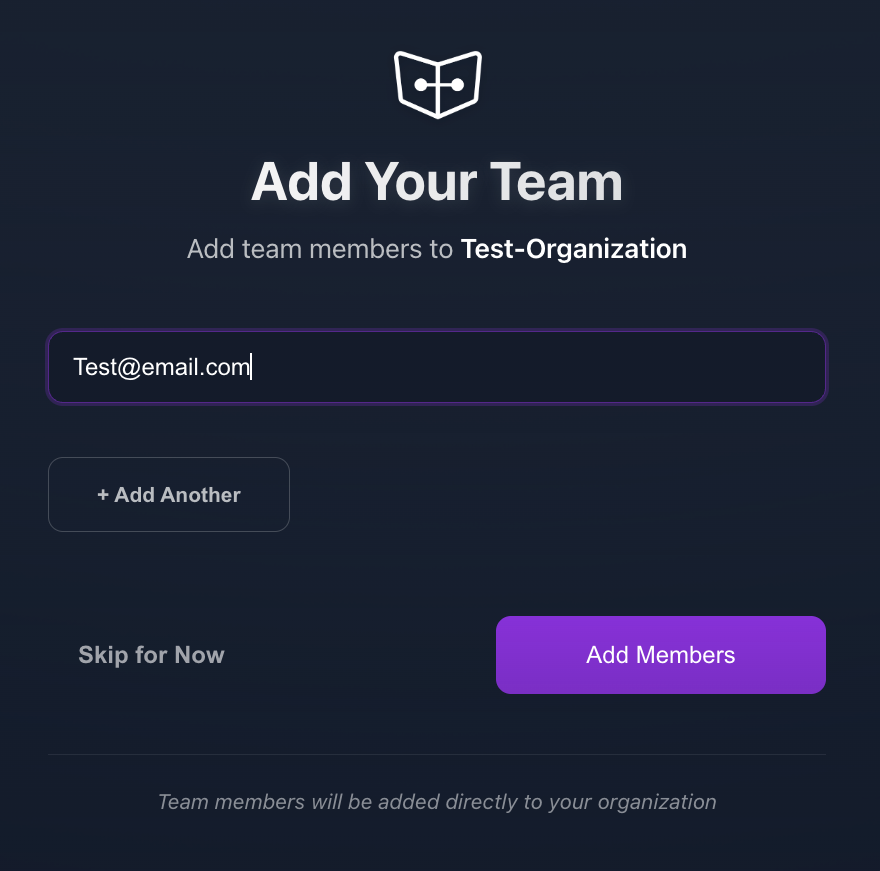
Adding Multiple Members
You can add multiple team members at once:
- Enter an email address in the field
- Click "+ Add Another" to add more email fields
- Continue adding all desired members
- Click "Add Members" to send invitations
Assigning Roles During Invitation
When adding members, you'll need to select one of three roles for each person:
- Admin: Full control over the organization
- Member: Can run scans and manage projects, but limited admin access
- Viewer: Read-only access to organization resources
For detailed information about each role and its permissions, see the Organization Roles documentation.
Skipping for Now
If you prefer to add members later, you can click "Skip for Now" and return to this step at any time through your organization settings.
Managing Existing Members
To manage existing team members:
- Go to your organization settings
- Navigate to the "Members" tab
- From here you can:
- Change member roles
- Remove members
- View when members joined
Changing Member Roles
To change a team member's role:
- Navigate to your organization settings
- Select the "Members" tab
- Find the member you want to update
- Select the new role from the dropdown menu
- Confirm the change
Removing Members
To remove a member from your organization:
- Navigate to your organization settings
- Select the "Members" tab
- Find the member you want to remove
- Click the "Remove" button next to their name
- Confirm the removal
Member Limits
The number of members you can add depends on your subscription tier:
- Free: Single user only
- Premium: Limited number of members (varies by plan)
- Enterprise: Unlimited members
For more information about subscription tiers and limits, see the Subscription Management documentation.
Best Practices for Member Management
- Regularly review your member list to ensure only appropriate people have access
- Promptly remove members who no longer need access to your organization
- Periodically audit role assignments to ensure they match current responsibilities
- Create a documented onboarding and offboarding process for team members