Appearance
Account Settings
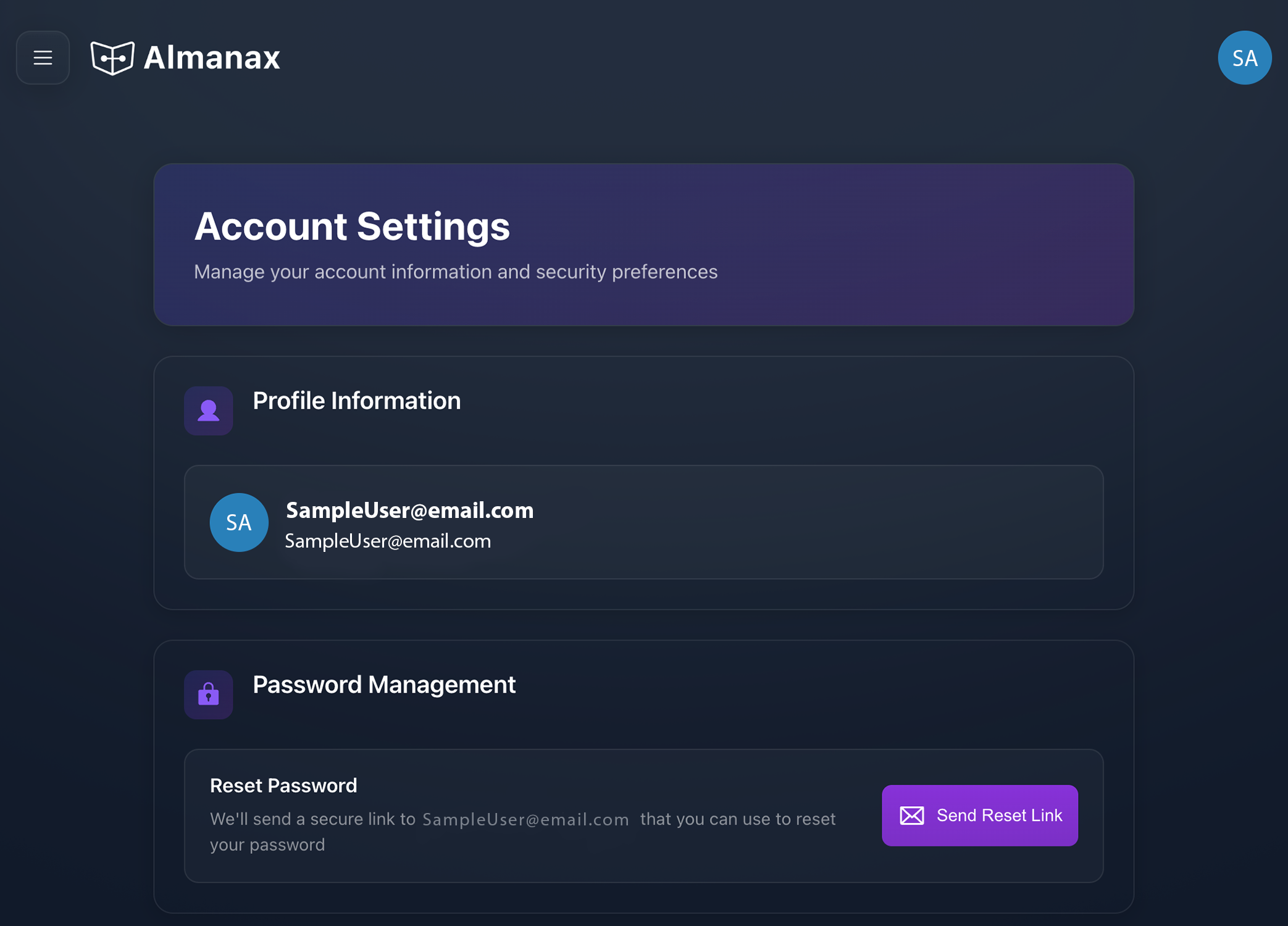
This guide covers how to manage your Almanax account settings, including profile information and password management.
Profile Information
Your profile information includes:
- Email address
- Display name
- Account creation date
You can view this information in the Profile Information section of the Account Settings page.
Subscription Management
The Subscription section allows you to view and manage your current plan:
Plan Details
- Current plan tier (Free, Premium, Enterprise)
- Plan start date
- Plan renewal date
Usage Metrics
- Projects used/total
- Scans used/total (Monthly)
- Other usage statistics
Upgrading Your Plan
To upgrade your plan:
- Navigate to the Subscription section
- Click the
Upgrade to Premiumbutton - Follow the prompts to complete your purchase
For complete information about subscription tiers, features, and management, see our Subscription Management documentation.
Team Collaboration
For team collaboration needs:
- Users on paid plans can create or join multiple organizations
- Team members can be assigned different roles (Admin, Member, Viewer)
- Enterprise subscriptions enable full team collaboration with shared visibility into projects and scans
API keys
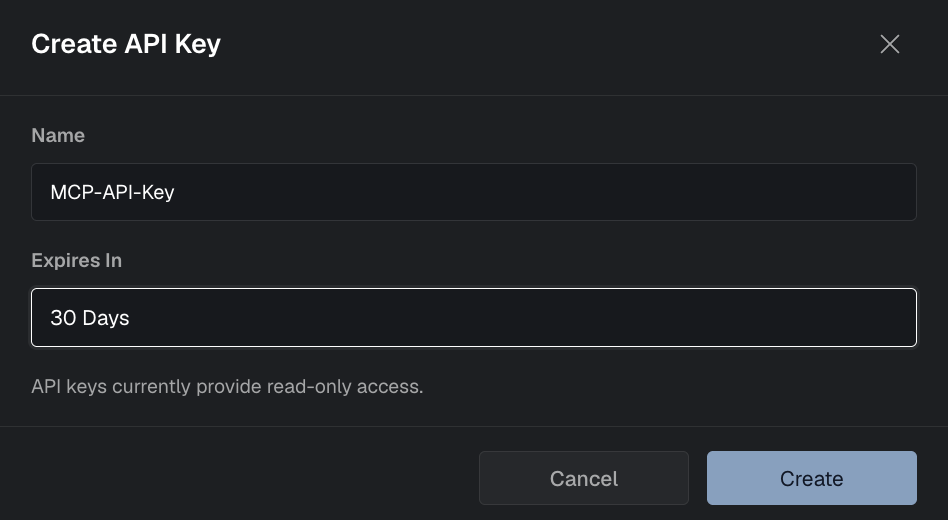
API keys let you authenticate to Almanax from external tools (for example the MCP Server).
To create an API key:
- Open Account Settings.
- Go to API keys.
- Click Create API key.
- Copy the key and store it somewhere safe (treat it like a password).
WARNING
Anyone with your API key can access your Almanax account/org resources that the key is permitted to access. Don’t commit API keys to git or share them in tickets/chat.
Password Management
Changing Your Password
- Go to your Account Settings (in the upper right)
- Navigate to Password Management
- Click
Send Reset Link - Check your email inbox

- Enter and confirm your new password
Password Requirements
- At least 8 characters
- At least 3 of the following:
- Lowercase letters (a-z)
- Uppercase letters (A-Z)
- Numbers (0-9)
- Special characters (e.g., !@#$%^&*)