Appearance
GitHub App Integration
This guide covers how to install and manage the Almanax GitHub App for CI/CD integration and automated security scanning.
Installing the GitHub App
The GitHub App allows security checks to happen automatically whenever you push new code. Without it, you can only run manual scans from your account.
Installation Steps
- Create a new project and click
Privateunder repository type to install the app for your organization.
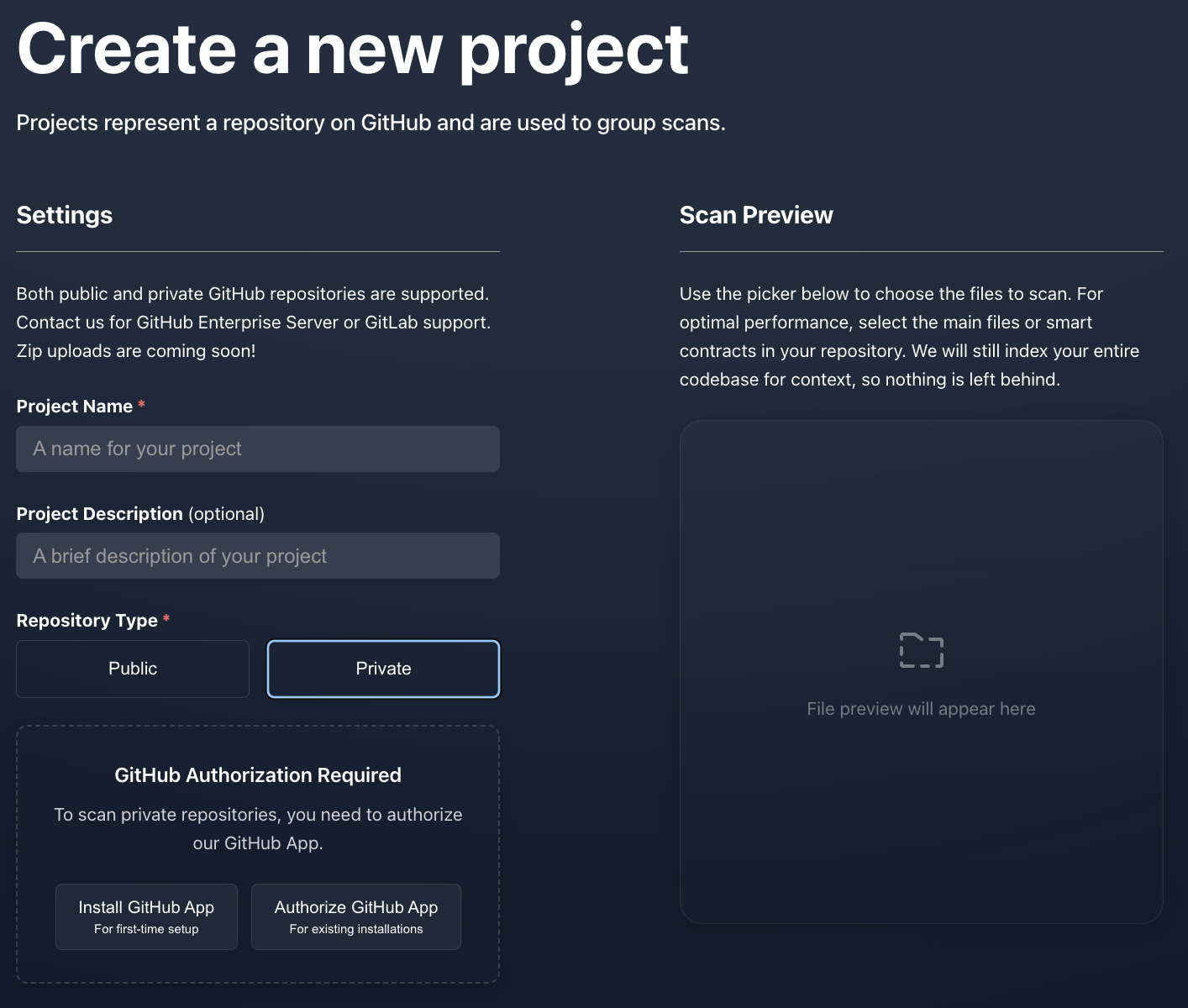
- For first-time users, click
Install GitHub Appwhich connects you to GitHub to configure. ClickConfigure.
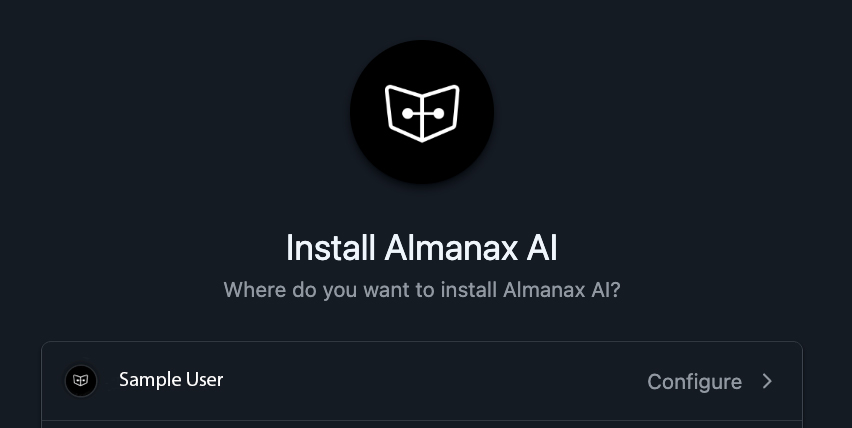
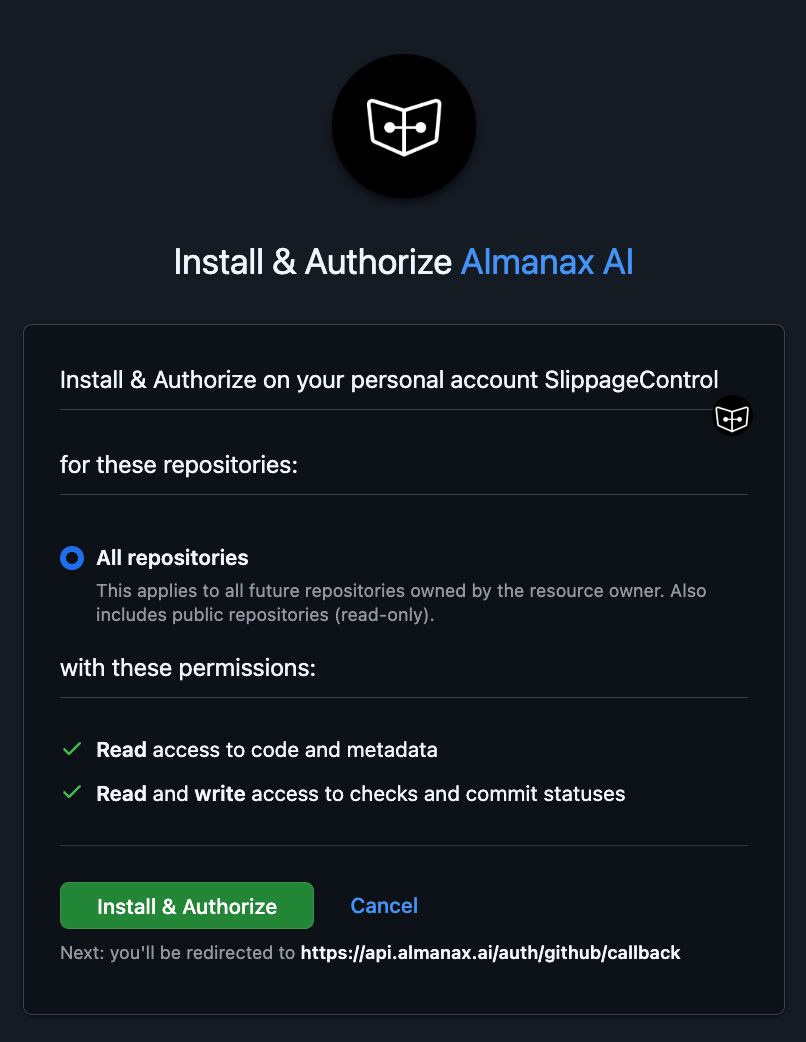
- Grant access to the GitHub app by clicking
Install & Authorize.
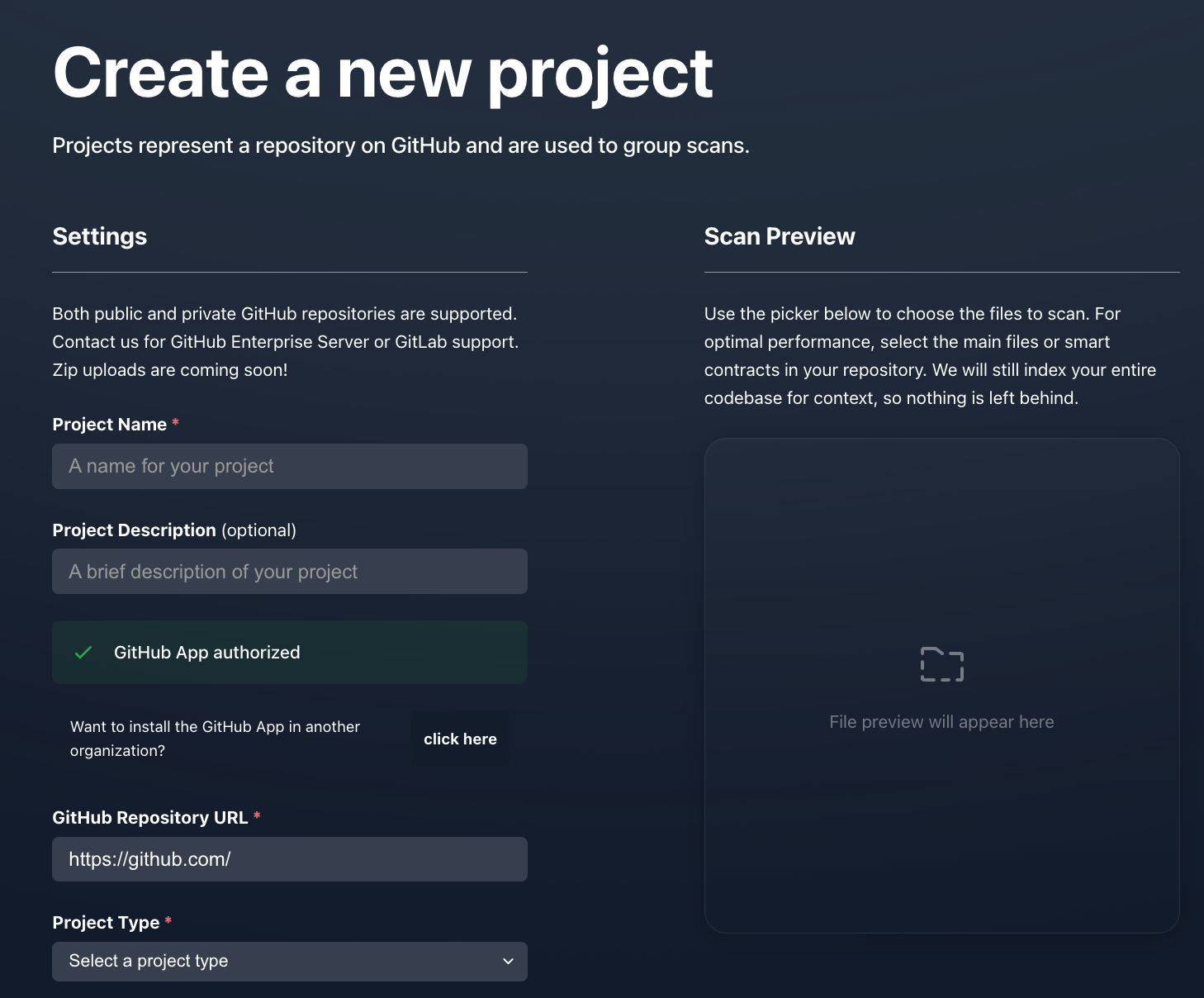
- Once installed, you'll be redirected back to the Almanax project page where the GitHub application will show as authorized:
GitHub App authorized
Revoke App Access
To revoke access to the GitHub App:
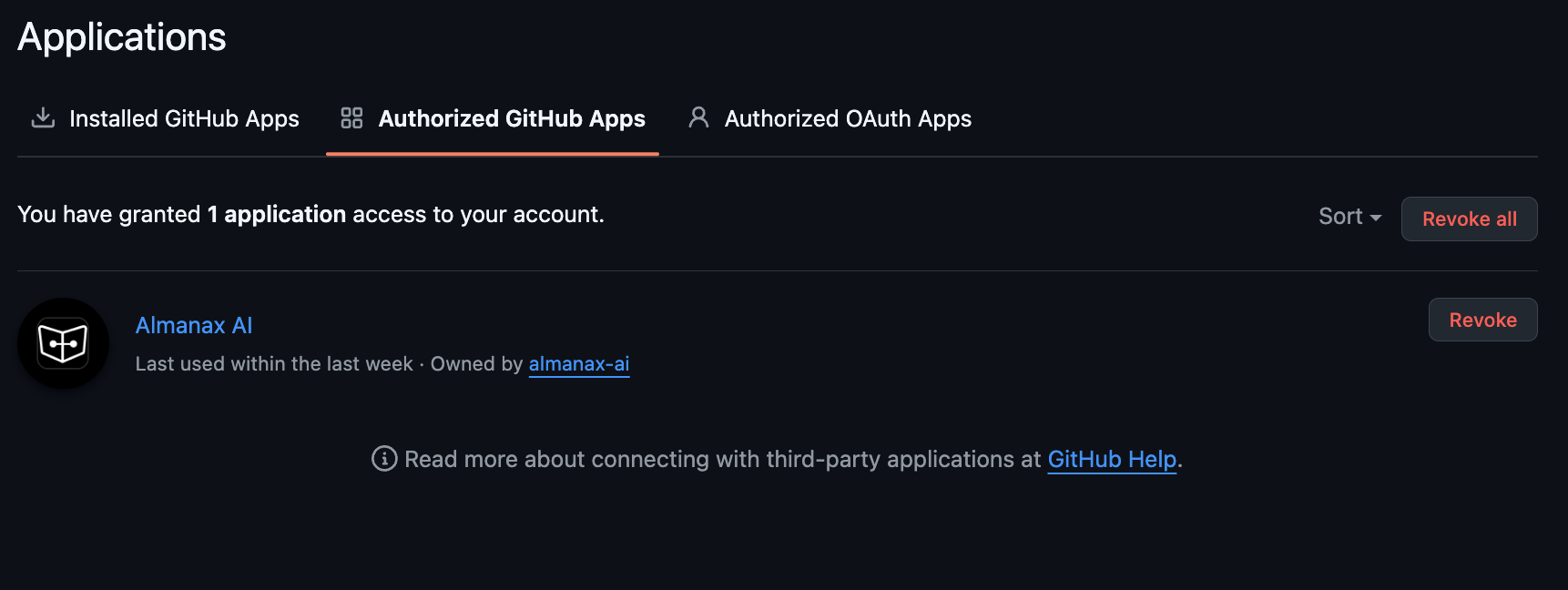
- Go to your GitHub profile settings
- Navigate to Applications > Authorized GitHub Apps
- Find Almanax AI and click
Revoke
WARNING
If you revoked access to the GitHub App, the way to grant access again is to reinstall the app.
Uninstalling the GitHub App
To uninstall the GitHub App:
- Go to your GitHub profile settings
- Navigate to Applications > Installed GitHub Apps
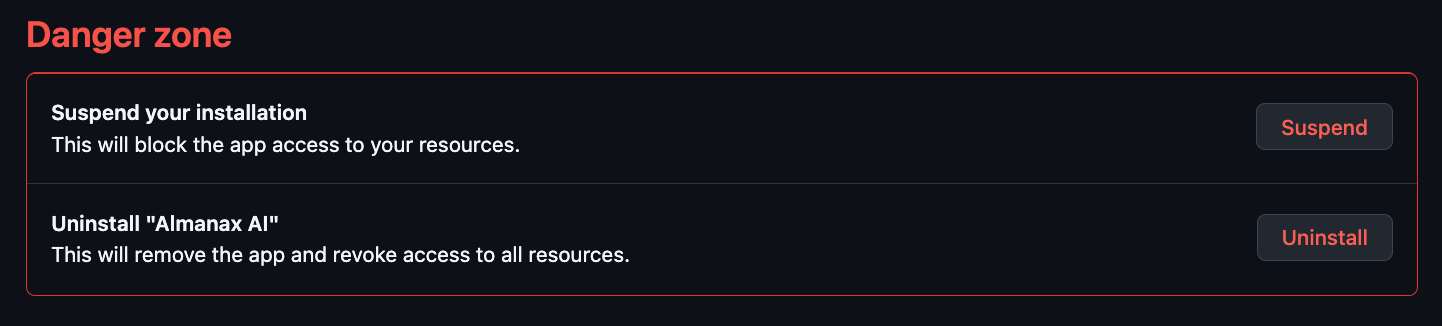
- Find Almanax AI and click the configure button
- Under the
Danger Zonesection, you'll have the ability to eitherSuspendorUninstallthe app
TIP
The GitHub App is a premium feature that enables automated security scanning in your CI/CD pipeline.
Permissions Required
For the list of permissions and why we request them, see: